
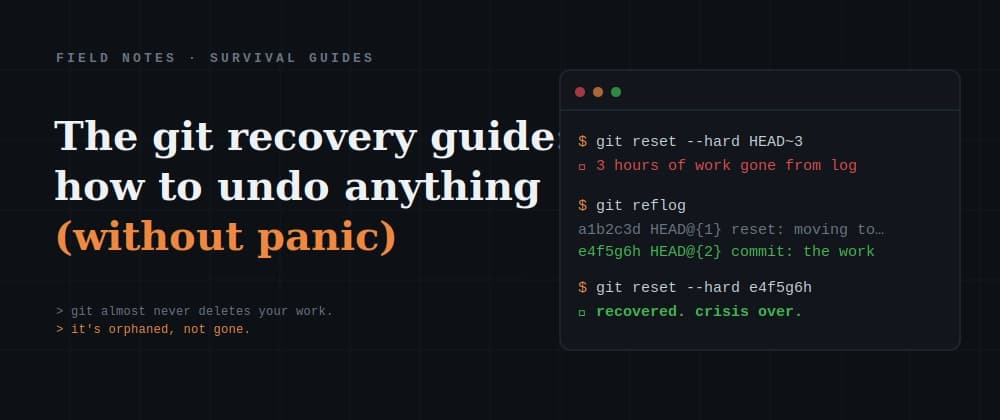
There's a specific feeling every developer knows. You run a git command, hit Enter, and half a second later your stomach drops because you realize what you just did. Three hours of work, gone from git log. The wrong branch, obliterated. A rebase that turned your history into soup.
When you "lose" a commit, it's usually not destroyed — it's just orphaned, meaning nothing points to it anymore. The commit is still sitting in git's database, and its hash is still recorded in a log of everything you've done. Recovery is almost always possible. You just need to know which command brings it back.
This guide is organized by what you just did. Find your situation, copy the fix, breathe. Bookmark it now — you will need it someday, probably at 2am.
Before the recipes, thirty seconds of theory that turns this from magic into something you understand.
Git rarely destroys anything. It moves references — the little pointers (branches, HEAD) that say "the current state is here." When you reset, delete a branch, or botch a rebase, you're usually just moving a pointer, not deleting commits. The commits stay in git's object database until garbage collection eventually clears the unreferenced ones.
And git keeps two safety nets: The reflog — a log of every move your HEAD and branches have made. Think of it as git's security-camera footage of your own actions. Even "lost" commits show up here with their hashes. Run git reflog and you can see everywhere you've been. git fsck — finds orphaned ("unreachable") objects when even the reflog isn't enough.
Nearly every recovery below is really just: find the hash of where you want to be, and point something at it again. That's it. Now the recipes.
Throws away your uncommitted edits to that file, restoring it to the last commit. (This is the modern command; you may have muscle memory for git checkout , which still works but restore is clearer.)
⚠️ This is destructive — it permanently throws away uncommitted work, and since it was never committed, the reflog can't save you. Make sure you mean it.
The commit is undone; your changes are safe and staged. This is the gentle, safe undo.
⚠️ --hard throws away the changes too. If you didn't mean to lose them, don't panic — the reflog can recover this (see Part 3). But run it carefully.
This creates a new commit that reverses the old one. Nothing is rewritten, so it's safe on shared branches — nobody's history breaks.
The reset vs. revert rule, once and for all: reset rewrites history — great for local, private commits nobody else has. revert adds a new undo-commit — the polite way to undo shared commits without ruining your teammates' day. Rule of thumb: if you've pushed it and others might have it, revert.
This is the heart of the guide. Almost every panic below is fixed the same way: git reflog, find the hash, point something at it.
Your commits come right back. The reflog recorded where HEAD was before you reset.
Deleting a branch only removes the label — the commits are still there. This re-attaches a label to them.
You made commits in a detached HEAD and switched away (they now have no branch pointing to them):
Entries look like HEAD@{2} — that means "where HEAD was 2 moves ago." You can use those references directly, e.g. git reset --hard HEAD@{2}.